

Players
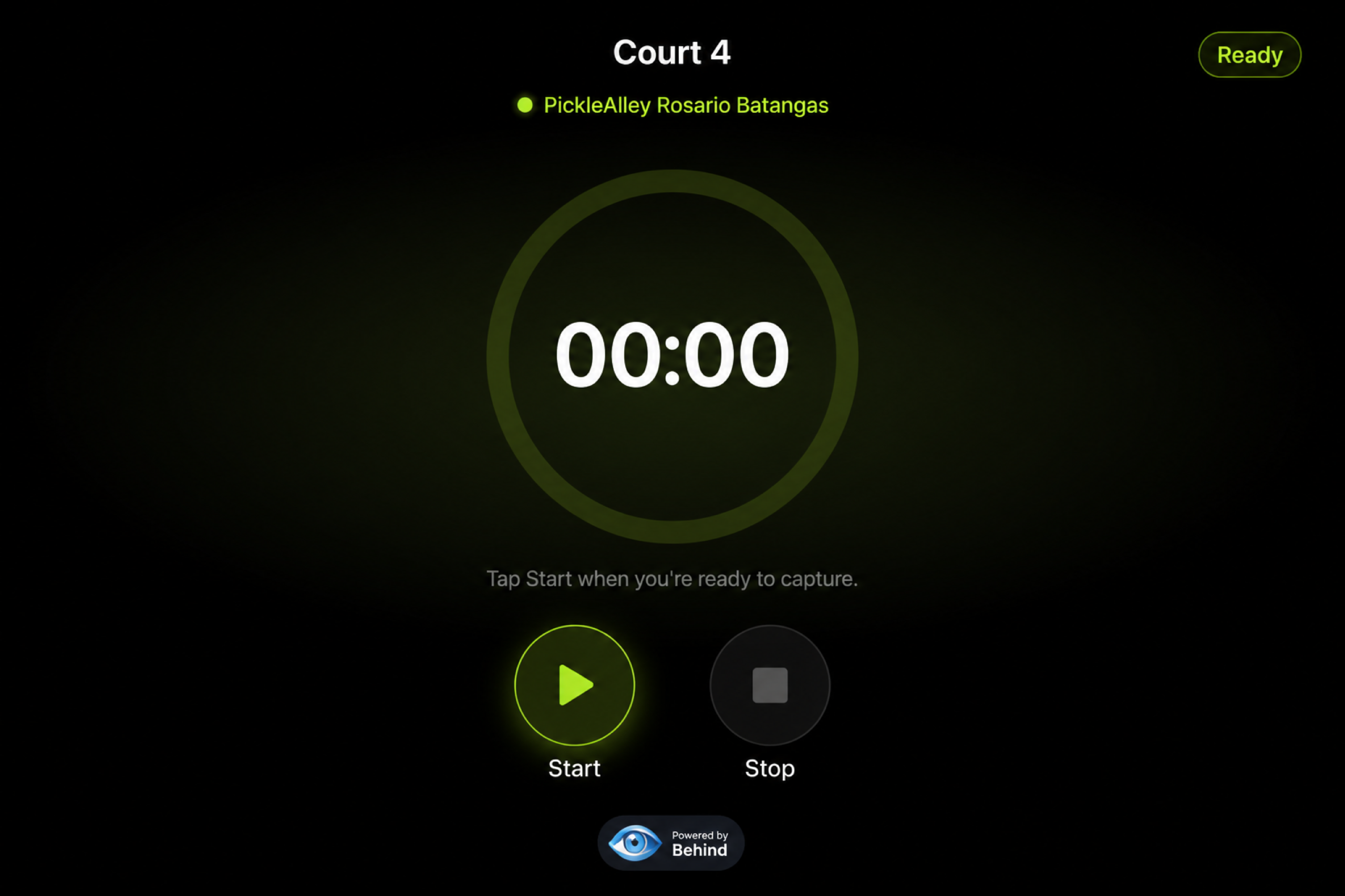
Start and stop the recording on the court tablet, then enter emails to receive the clip. No account and no app to install.

OnCourt
OnCourt records each match from your court cameras and emails players a link to watch or download the clip. Players start and stop from a tablet at the court. No account, no app.
Sample clips
Recorded with OnCourt at PickleAlley and Dink N' Drive. Players receive this same video by email after a match.
 PickleAlleyCourt 3 · Rosario, Batangas
 Dink N' DriveCourt 2 · San Antonio, Quezon
Who uses it
Players do not create an account or install an app. Staff run recording from one venue PC.
Start and stop the recording on the court tablet, then enter emails to receive the clip. No account and no app to install.
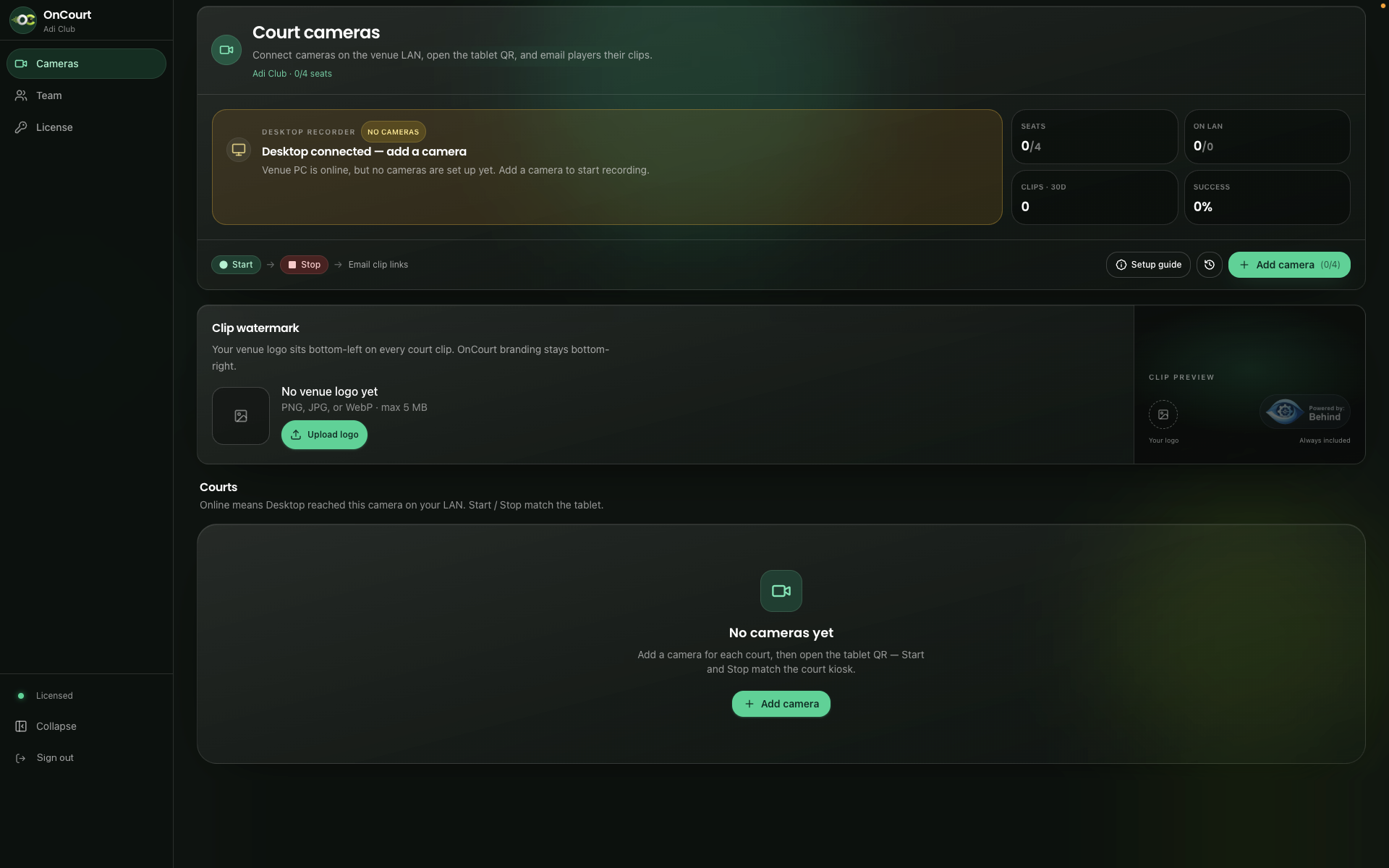
Keep OnCourt Desktop open on the venue PC, with a camera on each court and that court’s tablet page open. Owners and managers can invite the rest of the team.
Requirements
Recording runs through OnCourt Desktop on one Windows PC or Mac. If the app is closed, nothing records. The venue PC needs internet for uploads and email. Court tablets only need the venue Wi‑Fi.
IP cameras or an NVR on the venue network. Wired PoE or Ethernet is the most reliable.
Runs on the venue PC (Windows or Mac). Records, adds logos, uploads, and serves the staff and tablet pages.
Connects court tablets to the venue PC. Tablets don’t need internet.
Hosts each clip behind its own download link.
Delivers the clip link to each player.
For players
Start and stop on the court tablet, then enter emails. Nothing to install.
Open tablet
Staff opens the court’s tablet page from its Tablet QR.
Start
Tap Start when the match begins.
Play
The court camera records the full match.
Stop
Tap Stop when the match ends.
Add players
Enter a nickname and email for each player (up to 7), or one group name with a list of emails. Names and emails from the last 24 hours appear as suggestions.
Send
Tap send. The clip finishes processing in the background, and the tablet is ready for the next match.
Watch
The email usually arrives within 5 to 30 minutes, sometimes longer depending on the length of the video. Check spam if it’s missing. The link works for 2 days, and players can watch or download as often as they like.
Start not responding? Tap Cancel on the tablet to clear the session and try again. If it keeps happening, ask staff to check the venue PC and the camera.
Features
Everything your club needs to record matches and send clips to players.
After each match
What the venue PC does after Start and Stop on the court tablet.
The venue PC starts recording that court’s camera.
It finalizes the video, adds the logos, uploads the clip, and keeps a local backup copy.
Each player receives an email with a link to watch or download the clip.
FAQ
OnCourt is court recording software for pickleball clubs. It records matches from your court cameras and emails players a link to watch or download the clip. Players control recording from a tablet at the court, and staff run everything from one venue PC.
No. Players use the court tablet to start and stop the recording and enter their emails. The clip opens in any browser from the email link.
IP cameras (or an NVR) on the venue network, one Windows PC or Mac running OnCourt Desktop, and a tablet for each court on the venue Wi‑Fi. The venue PC needs internet to upload clips and send emails. Tablets don’t. If OnCourt Desktop is closed, nothing records.
OnCourt records IP cameras on the venue network over RTSP, either directly or through an NVR. Set the main stream to H.264 (not H.265). The in-app setup guide walks through the camera settings, and we confirm camera models as part of your quote.
On Cameras, tap Add camera and pick the court. OnCourt scans the venue network and lists the cameras it finds. If yours isn’t listed, enter its IP address or NVR channel manually. Then enter the camera’s username and password. Each court gets one camera, and your license sets how many camera seats you have.
After Stop, players enter a nickname and email for each person (up to 7), or one group name with a list of emails, and tap send. The email usually arrives within 5 to 30 minutes, sometimes longer depending on the length of the video. The link opens a page to watch or download the video.
Links stay active for 2 days, and players can watch or download as many times as they like until then. After a link expires, the venue may still have the local backup copy on the venue PC.
The court’s card on Cameras shows Error with the reason, such as a full disk or a camera that dropped off the network. Fix the cause and tap Reconnect. Recent captures still lists the clip, including whether a local backup is on the venue PC.
Yes. Owners can invite co-owners, managers, staff, and coaches from Team. Managers can invite staff and coaches. Invitees open the link on another computer on the venue Wi‑Fi, set a name and password, and sign in to the same club. No second license key.
The owner can transfer the license to the new venue PC from the License page in OnCourt Desktop. No new license key is needed.
Contact us
Tell us about your venue, how many courts you want to cover, and any cameras you already have. We’ll reply with pricing and next steps.
Or email bthescences@gmail.com