


Venue ops running
behind your pickleball courtsVenue ops running behind yourpickleball courts
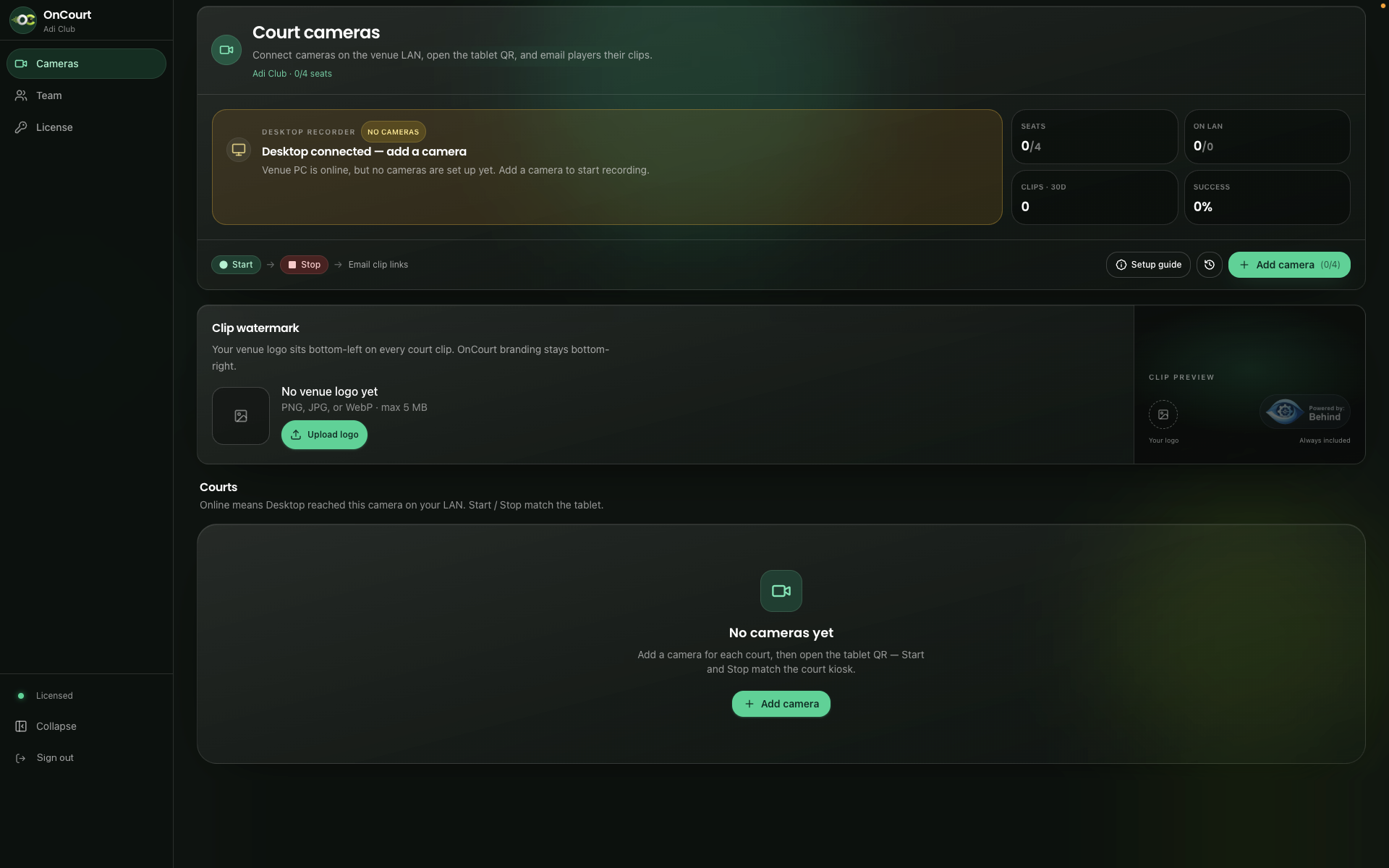
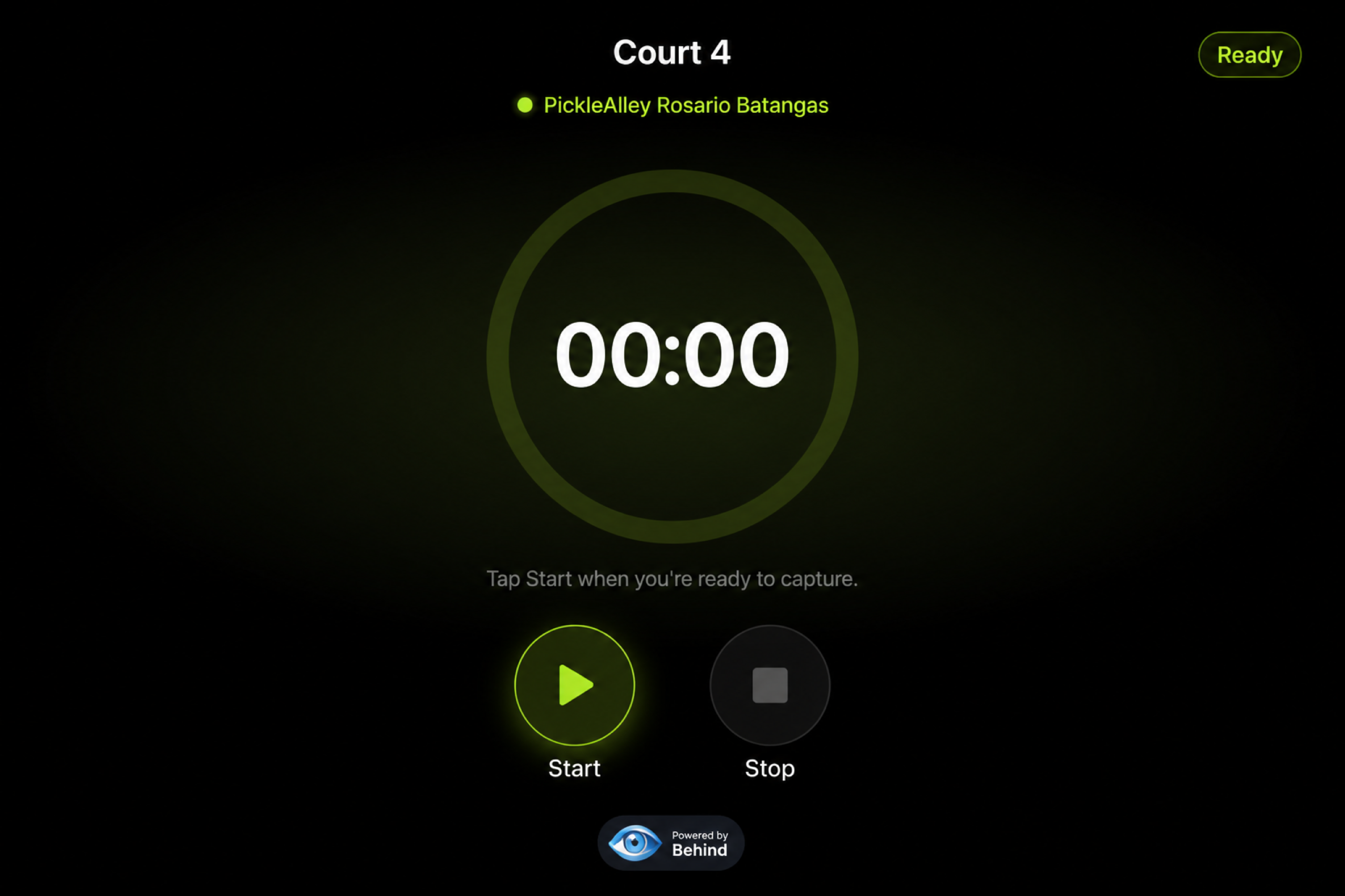
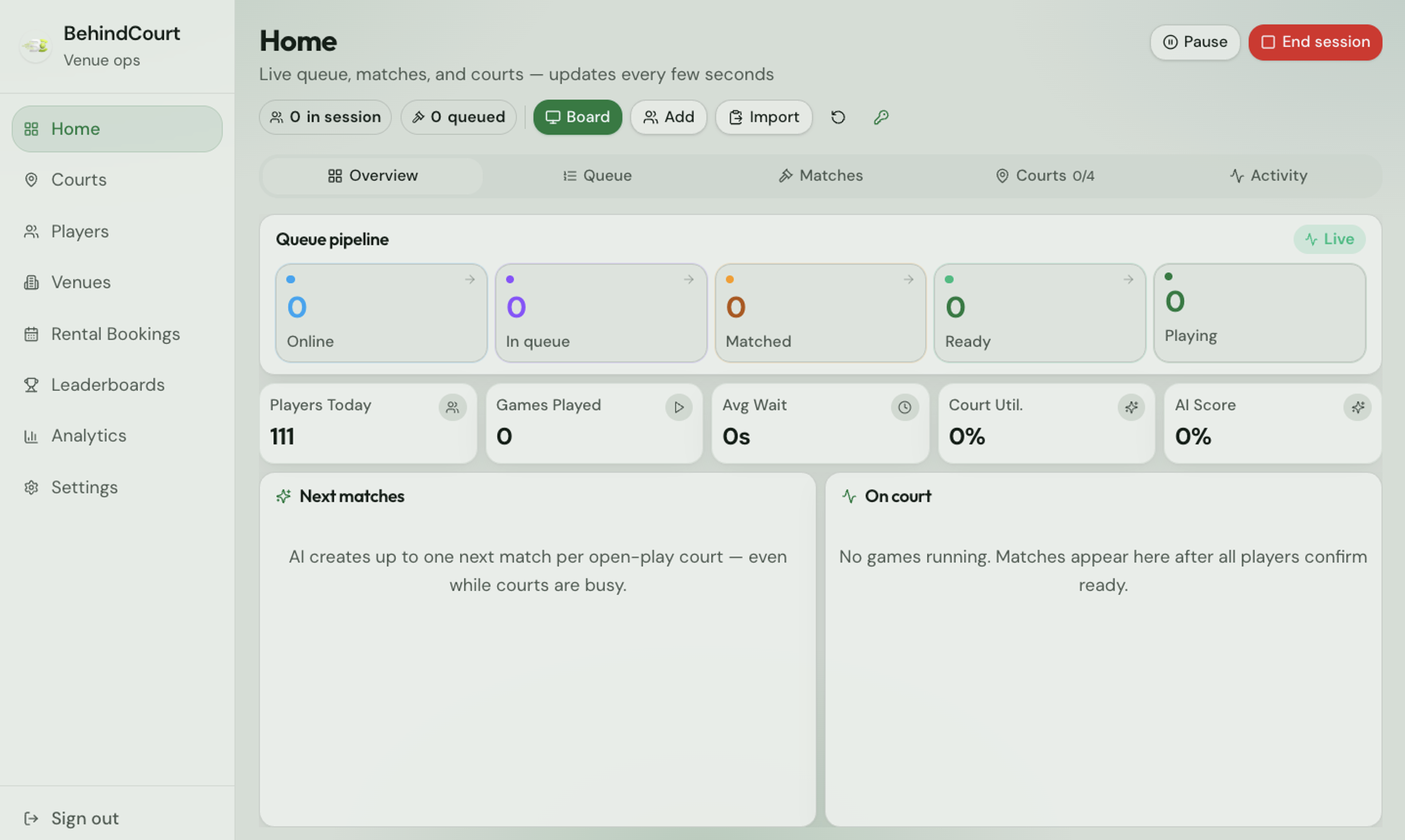
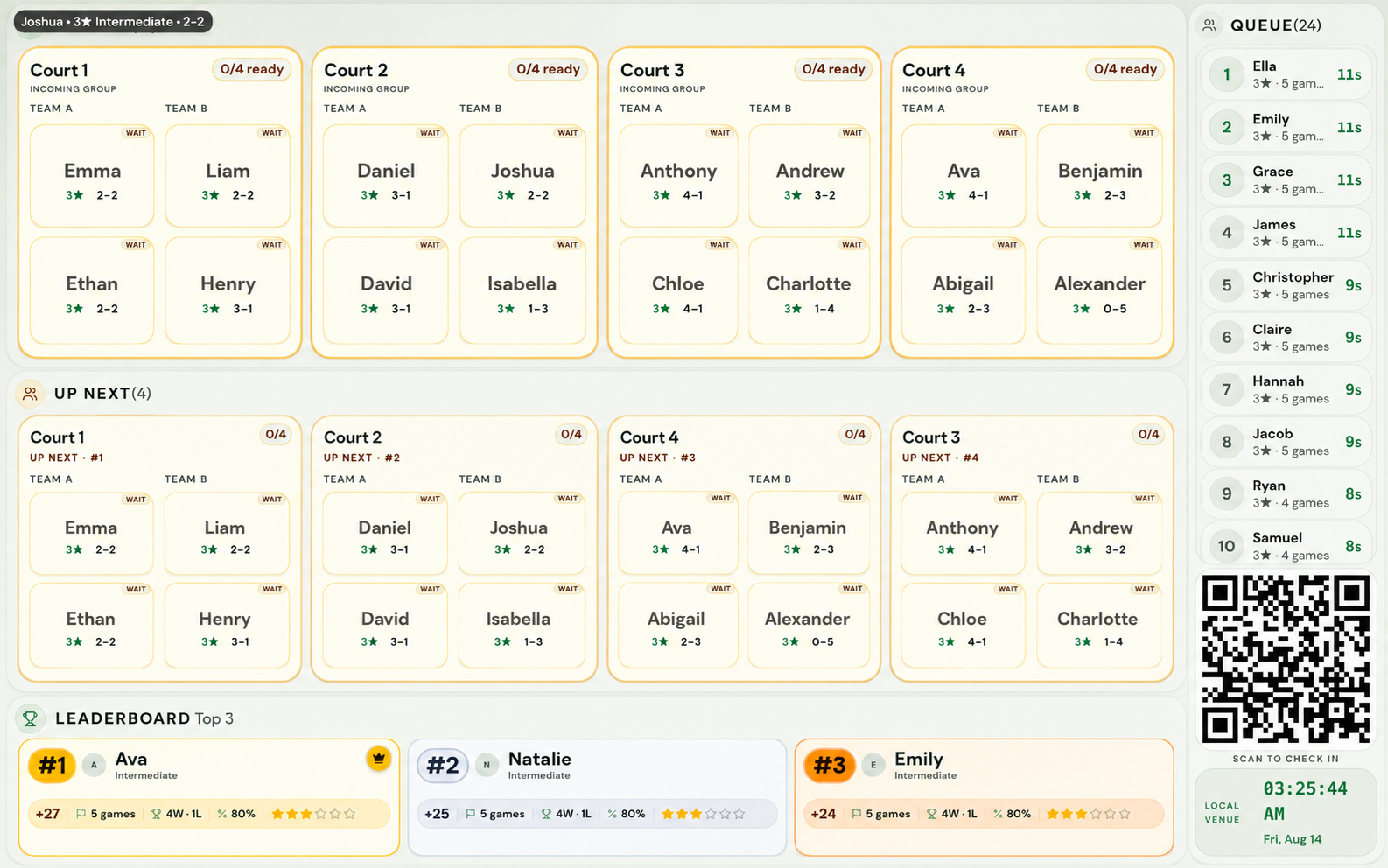
BehindCourt runs the floor. OnCourt captures the courts. Drag the slider to compare desk ops and camera start / stop recording.
Venues live on BehindCourt.
Explore partner floors across the Philippines. Tap a pin to zoom in, hover for a peek, tap again for photos and details.
Add your venuePhilippines
FAQ
Straight answers before you buy.
License, Wi-Fi, backups, roles, and what BehindCourt does not include. No surprises at the desk. Full docs guide.
BehindCourt is a pickleball venue system that runs on a computer at your club. Staff manage live play, players join from their phones, and the lobby TV shows the courts, all on your venue Wi-Fi.
No. Day-to-day play (queue, matchmaking, courts, TV board, and player check-in) is built to work on your venue Wi-Fi without the internet. Internet is only needed for optional extras you set up, like emailing reports or checking for app updates.
No monthly fee is required for daily play. You buy a one-time venue license, tied to that venue computer. Once activated, core features stay valid on that machine.
A dedicated laptop or PC that stays on while you play, venue Wi-Fi that lets devices reach each other, phones for players, and optionally a lobby TV. Open the board link in a real browser on the TV, not the TV’s built-in search.
Yes. Staff, the TV, and player phones should be on the same network as the venue computer. Guest Wi-Fi that isolates devices often breaks check-in and the board. Mesh systems are fine if everyone can still reach that computer.
No. Players open BehindCourt in the browser, enter the venue code from staff, and check in with their Reclub name if you imported that roster, or by registering their own account.
If players already booked on Reclub (or a similar Going / Participants list), paste the roster into Import. BehindCourt reads the names, lets you set ratings, and loads everyone into the session so you’re not typing the list by hand.
Not yet — DUPR integration is coming soon. Today you set skill ratings in BehindCourt (including after a Reclub import). When the link ships, venues will connect DUPR from the desk. Ask about it on a demo if you want to be in the first group.
Yes. Players book on a public page. They never talk to the venue computer. Staff confirm or decline on Rental Bookings. Confirm makes it a real rental. Decline emails the player and leaves the court free. Walk-ins go on the same calendar.
Yes. Owners and Managers create monthly, annual, custom-length, lifetime, or free plans. A plan can include free sessions per cycle, a discount after that, a member rate on court rentals, and up to 20 family seats. Staff sell plans from the desk, and perks apply automatically at check-in. Members enter their member code on the online booking page to get the rental rate.
Open Play, Win-Lose, Club’s Cup, Dual Meet, and Tournament, each with its own flow for pairing, scoring, and standings. Open Play boards rank by plus/minus after 5 or more finished matches, with games, wins, win rate, and score differential on every row.
Yes. Owners and Managers go to Settings, then Branding. Set club name, logos, colors, fonts, board marquee, and player messages. A live preview updates as you edit. Changes go live only when you click Save Changes. Reset to default restores BehindCourt’s original look.
Analytics and daily reports are for Owners and Managers. Only Owners activate and manage the license. Staff and Coaches run the floor with more limited settings access.
The license stays tied to that computer. There is no self-serve transfer in the app. Contact BehindCourt with proof the old machine is out of service (repair report, photo, or the unique ID from Settings). After review, a new license can be issued for the replacement. Activate it, then restore your latest backup. A new license does not bring back data from a failed drive.
On the venue computer. Download a full backup from Settings regularly. There is no automatic offsite backup. A disk failure without backups means losing history.
BehindCourt does not include court cameras or video capture, a cloud console for multiple venues, cloud backup, a remote dashboard, email-based staff invites, or password-reset emails. New staff and password resets show a temporary password on screen. Day-to-day play also cannot run if the venue computer is off, asleep, or blocked by a firewall. Court recording is a separate product: OnCourt.
OnCourt is court recording software for pickleball clubs. It records matches from your court cameras and emails players a link to watch or download the clip. Players start and stop from a court tablet with no account, and staff run everything from one venue PC with OnCourt Desktop.
IP cameras (or an NVR) on the venue network and one Windows PC or Mac with OnCourt Desktop open. Desktop serves the staff pages and court tablet pages over the venue Wi‑Fi, and finds cameras on the network when you add them. The venue PC needs internet for clip uploads and emails. Tablets don’t. If OnCourt Desktop is closed, nothing records.
After Stop, players enter a nickname and email for each person (up to 7) on the court tablet and tap send. The email usually arrives within 5 to 30 minutes, sometimes longer depending on the length of the video. The link stays active for 2 days, and players can watch or download as often as they like. No app install.
Contact us
Get a quote for your venue.
Tell us about BehindCourt, OnCourt, or both. We’ll reply with pricing and next steps.
Or email bthescences@gmail.com
Book a demo
See BehindCourt on your floor.
Walk through admin and player flows with us. We'll show you sessions, queue, courts, scoring, online court booking, and the lobby board for your venue.
Book a demo